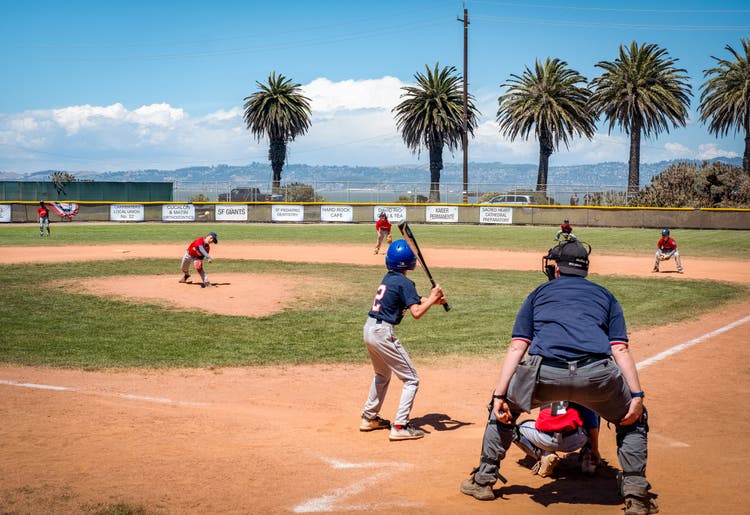
Game day without the clipboard.
From lineup generation to in-game mode to printable game cards, GameCard keeps you organized from the moment you pull up to the field to the final out. No paper, no spreadsheets, just coaching.
What game day looks like with GameCard.
Before the game: lineup ready in under a minute.
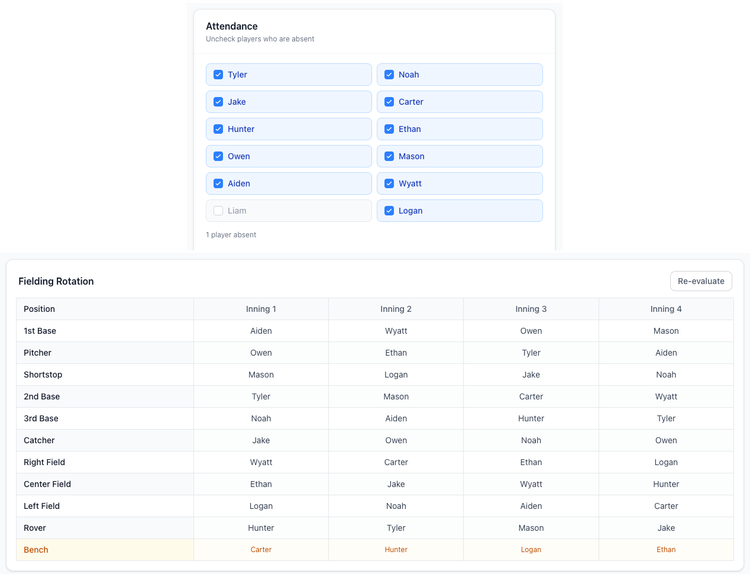
Open GameCard on your way to the field or from your kitchen table. Check off which players are coming. Your complete lineup is generated automatically. Inning-by-inning fielding rotation and batting order for baseball, or position rotation for soccer, is ready instantly.
If someone shows up at the last minute, add them and regenerate. Takes five seconds. If someone doesn't show, they were already unchecked. The lineup is still accurate.
At the field: In-Game Mode on your phone.
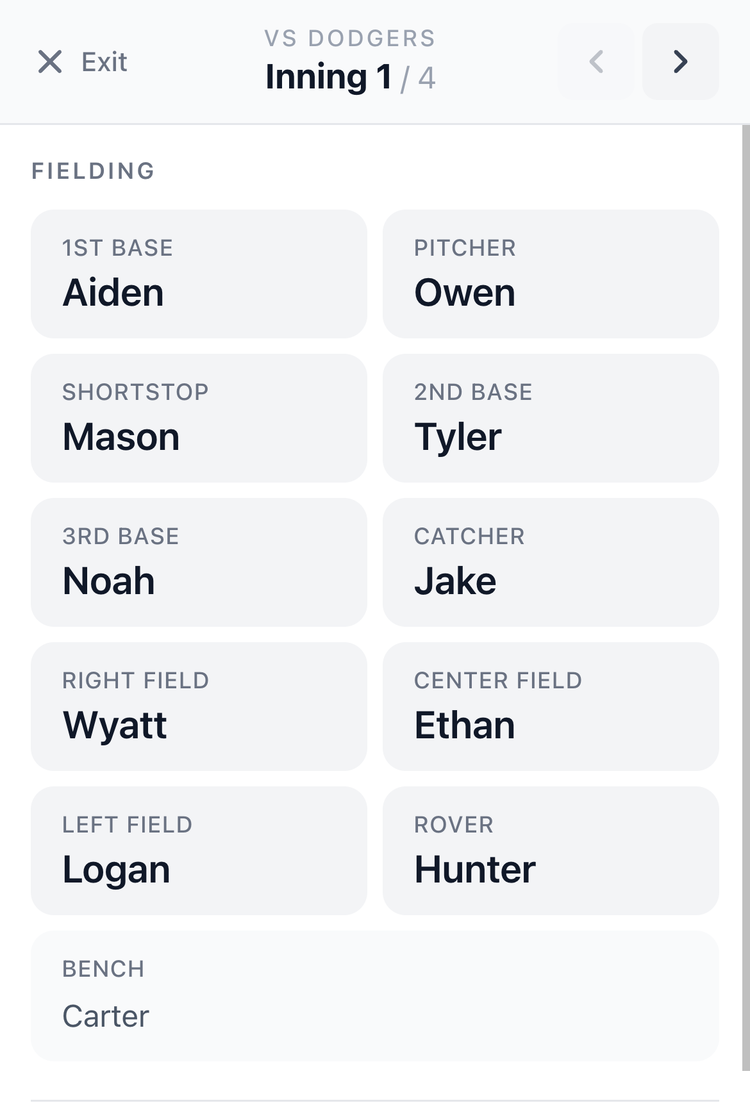
Tap Live on any game to open the full-screen In-Game Mode view. Big text, clean layout, no distractions. See who plays where this inning, navigate forward with arrows, and always have the batting order visible.
Your phone becomes your lineup card. No printed sheet. No clipboard. No laminated thing that got left at home.
During the game: track the batting order live.
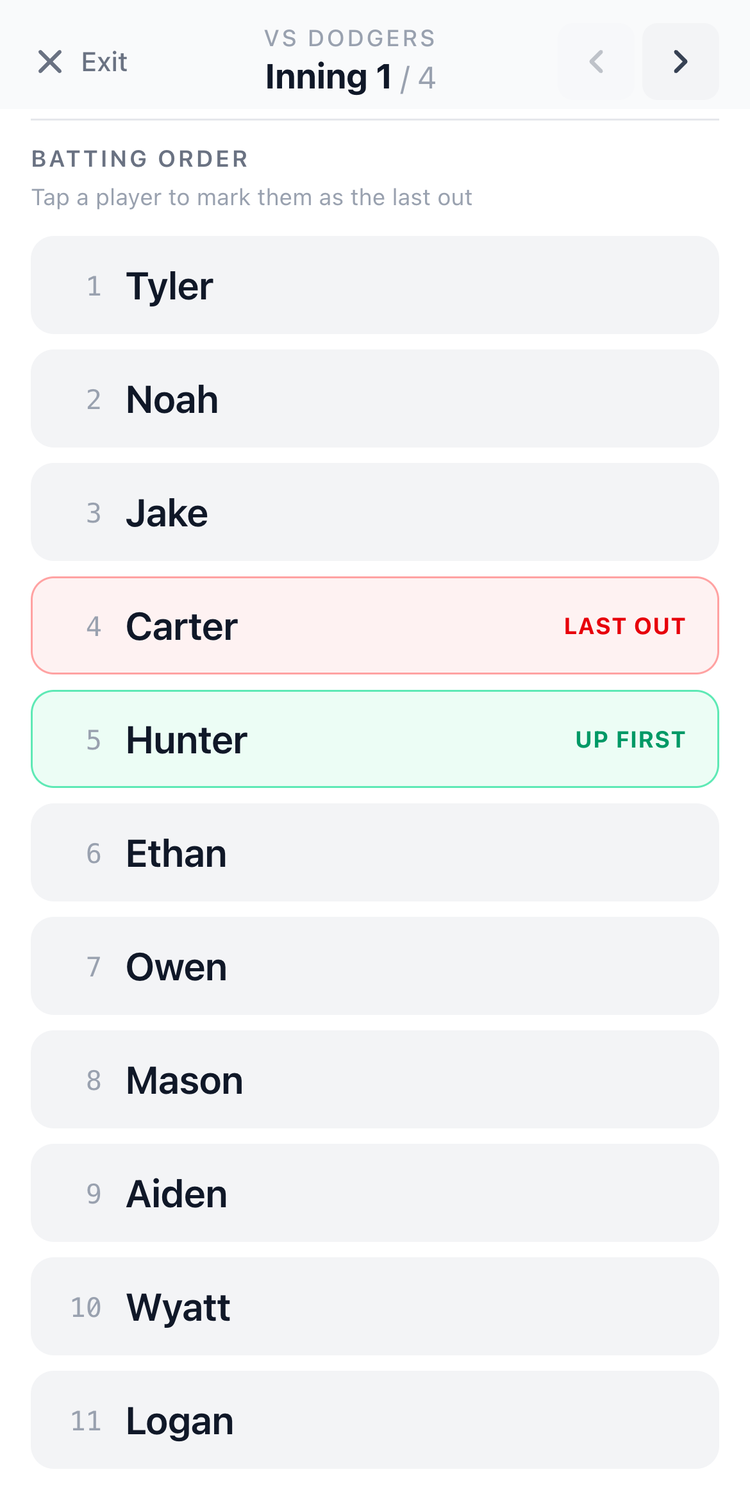
For baseball, tap any player in the batting order to mark them as the Last Out. The next batter automatically highlights as Up First. Tap again to undo if you made a mistake.
After a pitching change, a long inning break, or a substitution, you always know exactly where you are in the order. No pencil marks. No trying to remember who batted last.
Rather print? Game cards are built in.
GameCard generates a clean, one-page printable game card: fielding rotation grid and batting order on a single sheet, ready to hand to the scorekeeper before first pitch.
Some coaches like having a backup on paper. Print it in under a minute before you leave the house.
In-Game Mode: built for the dugout.
In-Game Mode is a full-screen view designed to be used at the field. Big text. High contrast. No menus or small buttons to accidentally tap.
Navigate between innings with forward and back arrows. The fielding rotation is at the top, showing who's where this inning. The batting order sits below it. Your phone is landscape or portrait, whichever you prefer.
Works on any phone. Any browser. No app to download.
Always know who's up next.
Before In-Game Mode, most coaches used a pencil and a printed sheet to track the batting order. They'd mark off each batter as the inning progressed, then lose track after a substitution or a pitching change.
In GameCard, tap any player in the batting order to mark them as the last out. The next batter immediately highlights as up first. Tap again to undo. No erasing, no confusion.
Substitutions without the confusion.
Need to pull someone out mid-game? Remove them from the lineup, move players around, and the remaining rotations adjust automatically. Remove a player and the remaining rotations regenerate cleanly around whoever is still playing, so mid-game changes don't affect future lineups in unexpected ways.
Parents already know where to be.
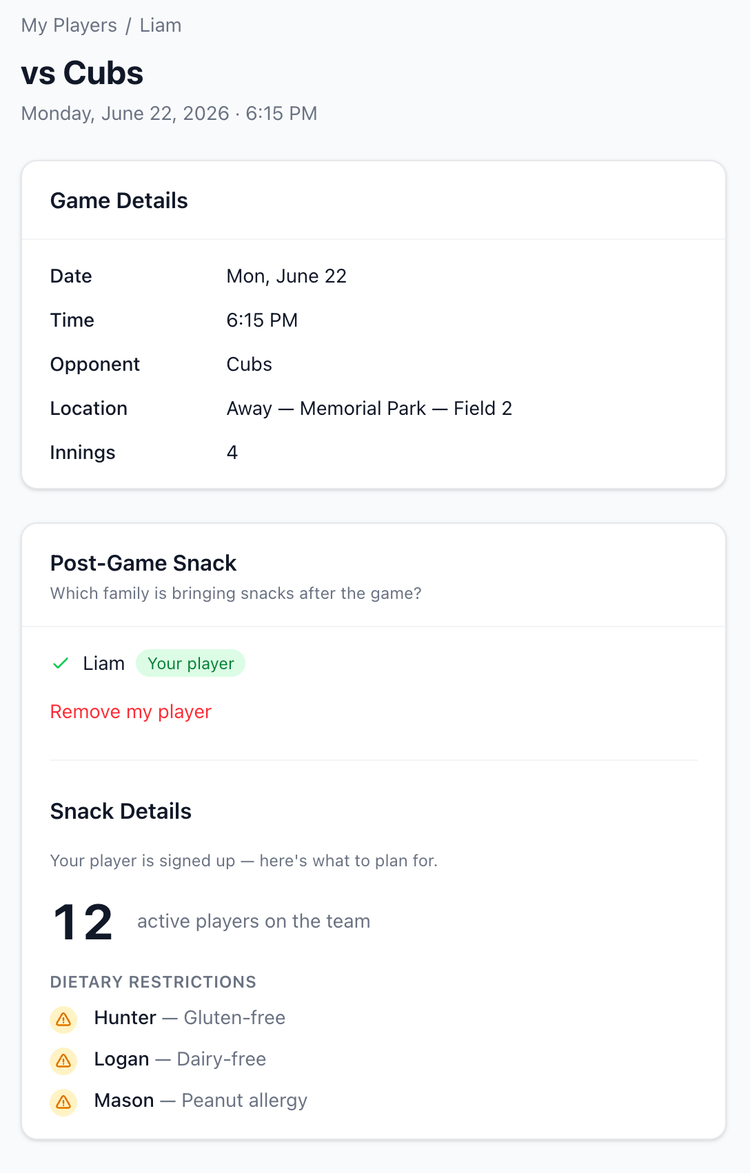
GameCard sends every parent a reminder email the morning of the game, automatically. The reminder shows the time, the field location, and whether they're signed up for snacks. They show up with no prompting from you.
No "what field are we on?" texts on Saturday morning. No "what time should we be there?" DMs at 7am. Parents have the game details. You coach.
Game day questions.

Show up ready. Coach from your phone.
GameCard has your lineup ready before you get to the field and your full game-day view ready the moment play starts. Free to start, no credit card required.