
Your player's season, all in one place.
GameCard gives parents a clean, simple view of everything that matters: the schedule, the lineup, practices, snack sign-ups, and a calendar that brings all your kids' teams together. No app to download. No password to remember.
Everything you need to follow the season.
Know Before You Go
Snack Duty in One Tap
One Calendar for All Your Kids
Chat with Your Coach and Team
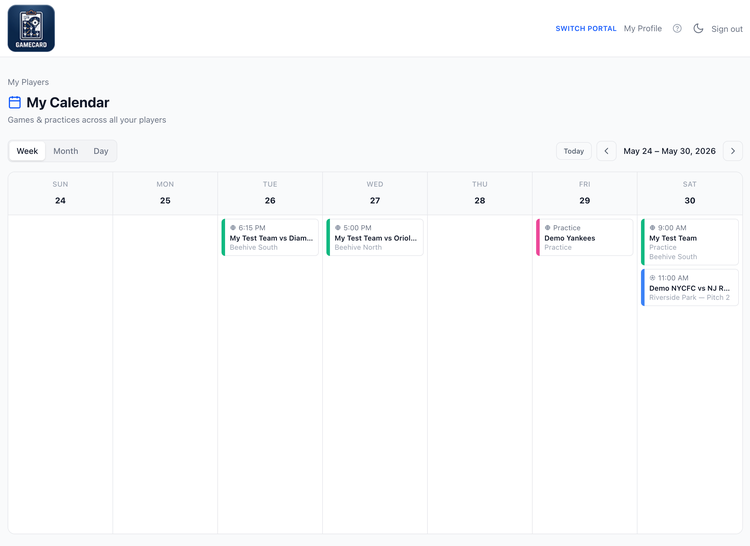
One calendar. Every game. Every kid.
The GameCard calendar pulls together every game and practice from every team your kids are on, not just one player, all of them. Baseball on Saturday, soccer on Tuesday, practice Wednesday evening. It's all there in one view.
Switch between day, week, and month views depending on how far out you're planning. Each event shows the time, location, and which player it belongs to so you know who needs to be where at a glance.
The schedule, location and field side, before you leave the house.
Every game on your player's schedule shows the full details — date, start time, location, field side (home/away), and opponent.
No more "I don't know what field we're on" or "I don't know when we're done." Everything is there when you need it.
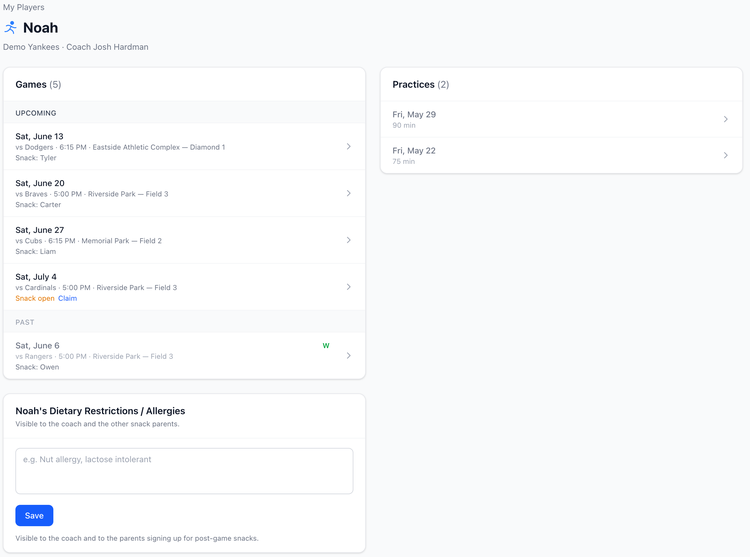
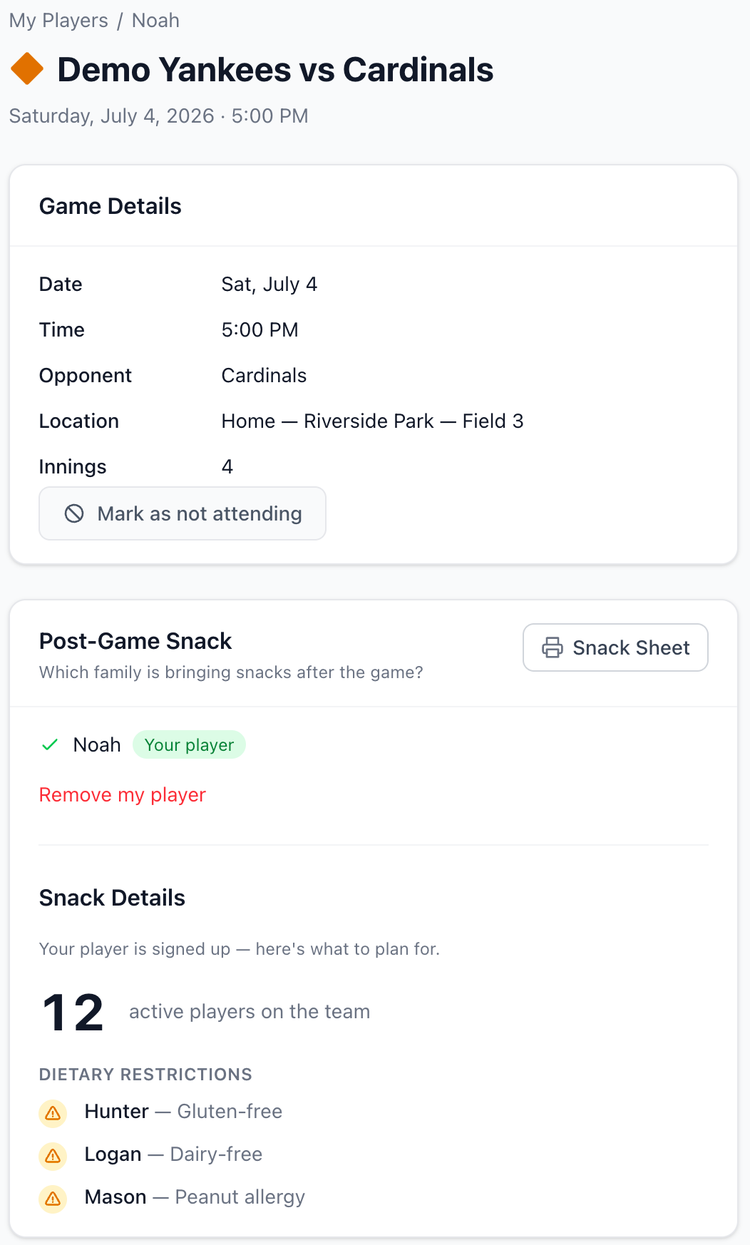
Snack sign-ups that take 10 seconds.
Open the game details page, tap the volunteer button, and you're signed up for snacks. No email thread with the coordinator. No spreadsheet to find. GameCard sends you a confirmation right away, then a reminder the morning of the game, including a note that you're on snack duty that day.
If your family has any dietary restrictions or food allergies, add them once to your player's profile. When you're on snack duty, GameCard shows you the full list for every player on the team, so you know exactly what to bring and what to avoid.
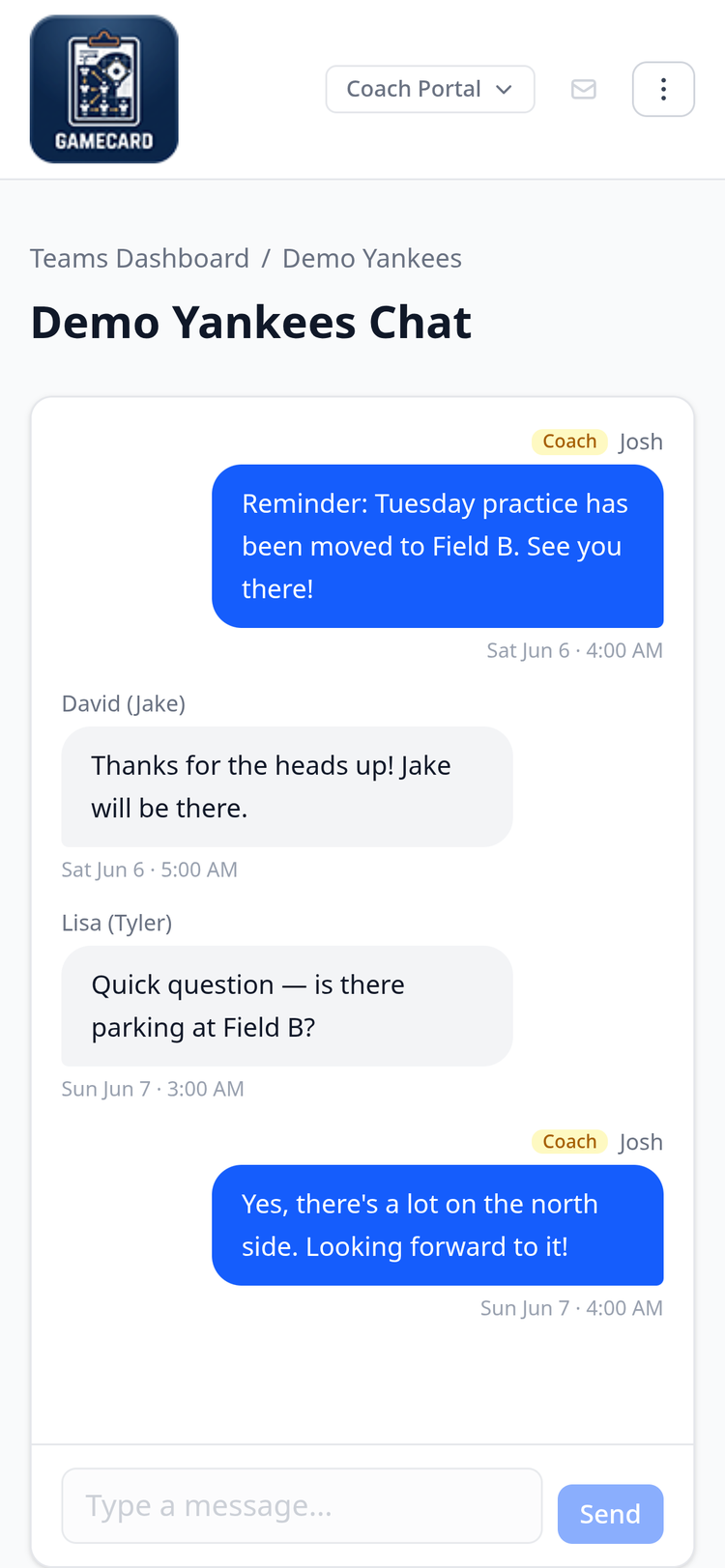
Chat with your coach and team, in real time.
GameCard includes a built-in team chat shared between all parents and coaches on the team. It works like a group chat but lives inside the app, so there is nothing extra to install.
Open the chat from your player's page, type a message, and send. Your coach and the other team parents see it instantly. When your coach posts an update, it appears in the same thread. Reply directly in the chat and everyone sees your response.
For the best experience, install GameCard on your phone as a Progressive Web App — no app store required. Once installed, turn on push notifications so you get alerted the moment your coach or another parent sends a message, even when the app is closed. On iPhone, install from Safari. On Android, install from Chrome.
Getting started takes about 30 seconds.
1. Your coach adds your email
Parents don't sign up directly. Your child's coach adds your email address to your player's profile in GameCard. This is the only step that requires the coach.
Once they've added you, GameCard sends you a welcome email with everything you need to get in.
2. Sign in: no password needed
Open the welcome email and click the link. You can sign in with Google (one click) or use a magic link sent to your email. No password, no account to create.
You only do this once. After that, GameCard remembers you on your device.
3. Your player's season is ready
Your dashboard shows all the players you have access to. Click any player to see their games, practices, and lineup. The calendar on the My Players page pulls everything together across all your kids automatically.
Parent questions.

Ready to follow the season?
For parents: Ask your coach to add your email to GameCard. Once they do, you'll get a welcome email with your sign-in link. No account needed, no app to download.
For coaches: Add your parents' emails to their player profiles and they'll be set up automatically. Free to start, no credit card required.